

USC Viterbi Approved Templates
There is a plethora of various Cornerstone templates created that are USC-branded, mobile-friendly, and digitally accessible. Each section are styles created to organize your content in a visually striking way.
To begin, Theme.co has extensive documentation how you can create, reuse, and manage templates for your site.
To get access to any templates, please submit a ticket to viterbiservicedesk.web@usc.edu or through myViterbi indicating which template you wish to import to your site.
If you have a request to create a specific template or design for reuse, please also inquire via ticket.
Templates for Download
How to Download, Upload, and Use a Section Template on the Viterbi Web Platform
This guide covers the full workflow: downloading a section template from the Viterbi IT template library, importing it into Cornerstone, and adding it to a page.
Step 1: Download the Template File
- Go to the correct Download page linked in buttons above.
- Scroll to the section you want (Section #1, #2, #3, #4, etc.). Each has a preview of the layout above its download link.
- Click the Download Section #X button for the layout you want.
- This downloads a .json file to your computer (usually to your Downloads folder). This file is a Cornerstone template export and is what you'll import in the next step.
Step 2: Open the Page in Cornerstone
- Log into the WordPress admin dashboard for your site.
- Go to Pages, then open the page you want to edit.
- Click Edit with Cornerstone to launch the front-end builder.
Step 3: Import the Template into Cornerstone
- In the Cornerstone builder, click on the Templates icon within the workspace area and go to Manage Library.
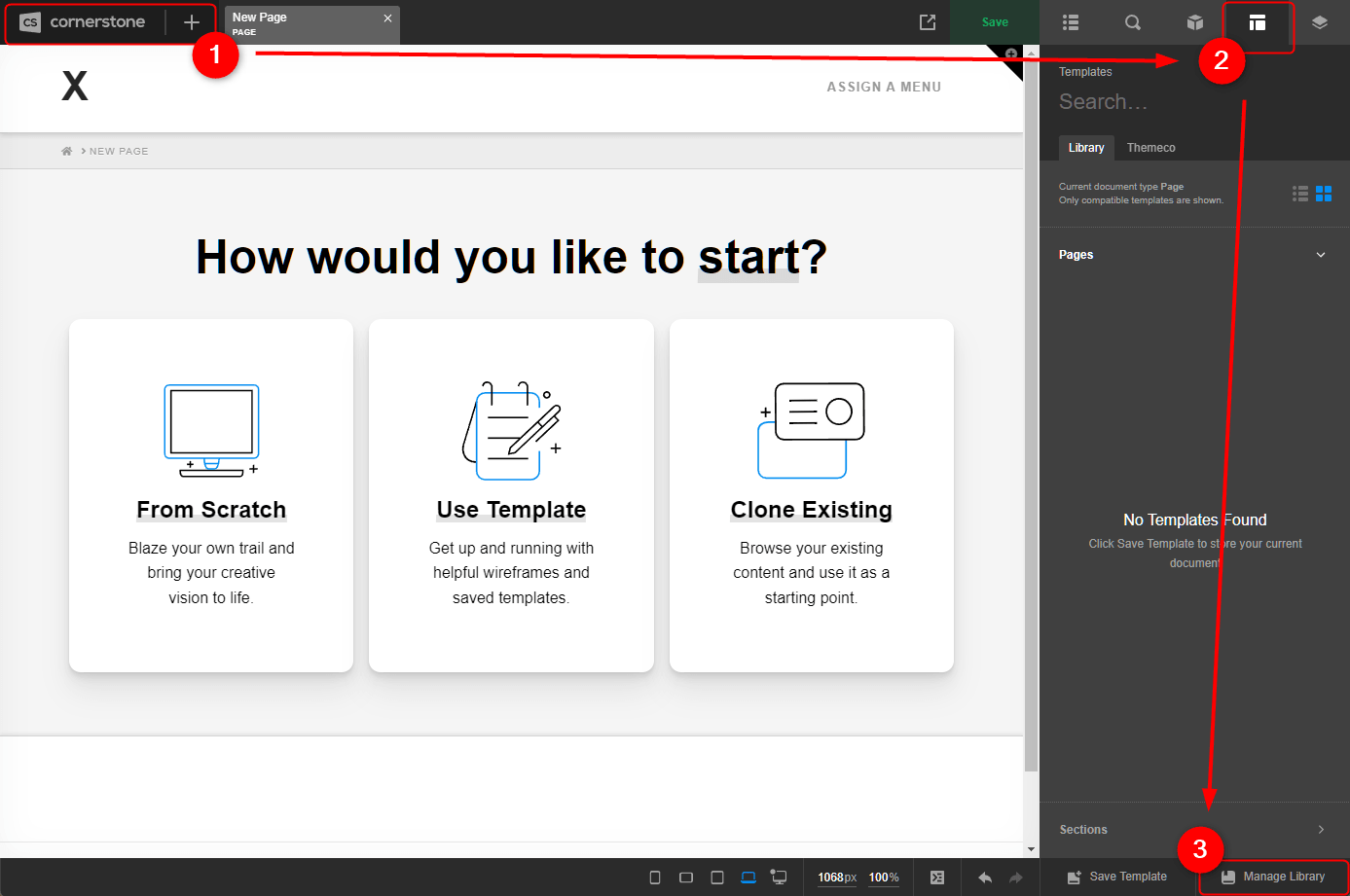
- Click the import icon (cloud with an up arrow, usually top-right of the My Templates panel).

- In the file picker, select the .json file you downloaded in Step 1.
- Once imported, the template will appear as a thumbnail in your My Templates list, named after the file (you can rename it if needed).
Step 4: Add the Template to Your Page
- With the template now in My Templates, drag its thumbnail onto the canvas at the point in the page where you want it, or click it to insert at the currently selected location.
- The full section (rows, columns, and elements) will drop into the page fully built.
- Click into each element (headings, text, images, buttons/links) to edit the content for your page. Placeholder text like "Lorem ipsum" and stock images need to be replaced.
- Check image alt text and link destinations as you go, don't leave them as placeholders.
Step 5: Save and Publish
- Click Save in the Cornerstone toolbar to save your draft.
- Preview the page to confirm the layout renders correctly at desktop, tablet, and mobile widths.
- Click Publish (or Update) when ready to go live.
Notes
- Imported templates live under My Templates only for your user session/site, they aren't shared automatically across other Viterbi sites.
- If a template doesn't appear after import, refresh the Cornerstone builder and check the My Templates tab again.
- Keep the original .json file if you plan to reuse the template on other pages or sites, you can re-import it rather than re-downloading.